

-
Design no-code games with Reality Composer Pro 3
Discover how you can use ScriptGraph in Reality Composer Pro 3 to create no-code 3D content for your apps and games. Learn how to take advantage of visual nodes to build animations, create interactive moments, and incorporate SwiftUI elements to add speech bubbles and other UI to your experience.
Chapters
- 0:00 - Introduction
- 1:02 - Meet ScriptGraph
- 1:50 - A wish...
- 2:36 - Build the game
- 11:16 - Advanced techniques
- 18:32 - Next steps
Resources
Related Videos
WWDC26
-
Search this video…
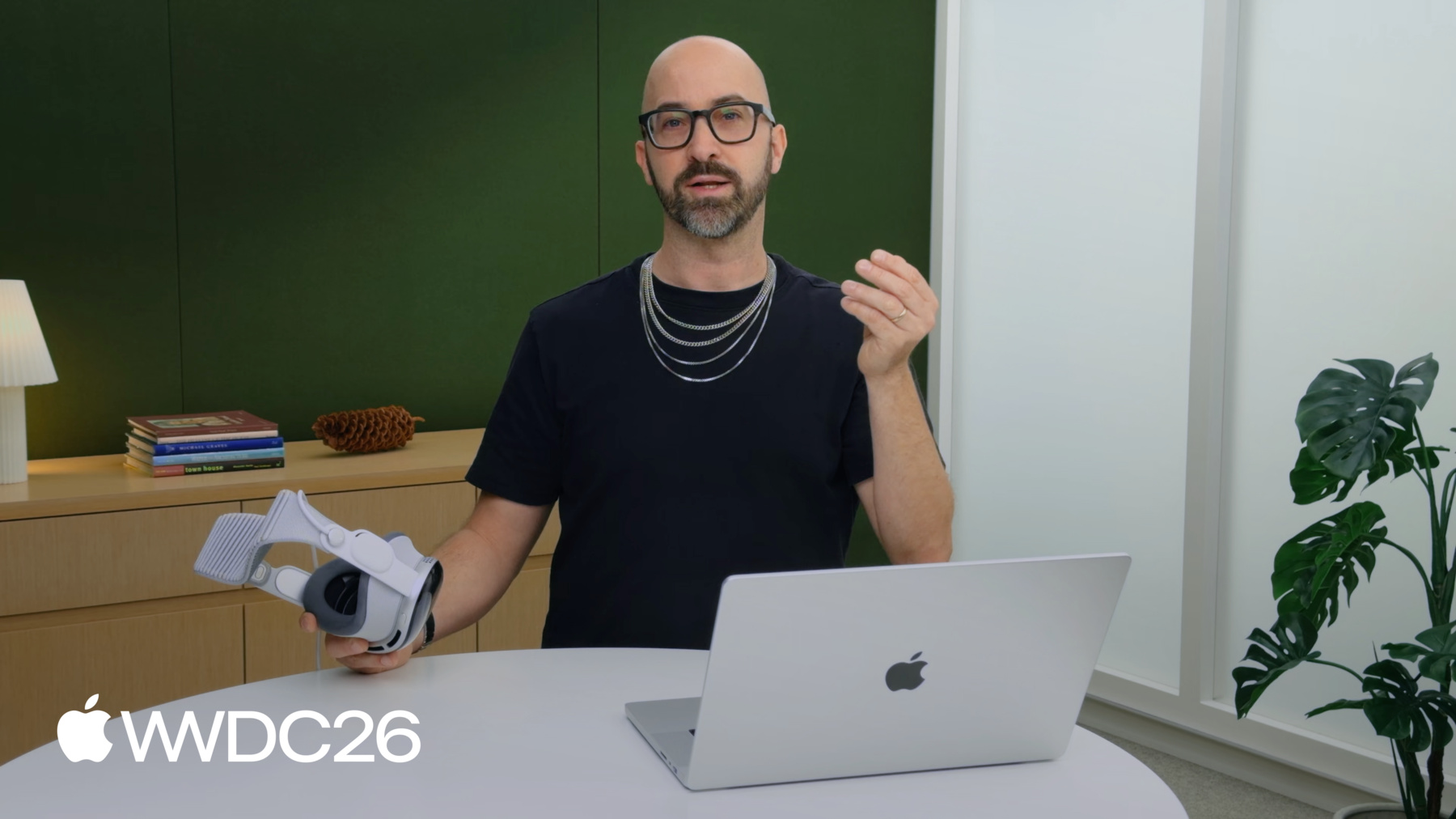
Hi, my name is Saschka Unseld. And I am a Creative Director at Apple.
Whenever I work on an idea it is really important to me that I can quickly mock it up and iterate on it again… and again… and again. Reality Composer Pro 3 lets me do just that without writing a single line of code.
In this session I'll share how I build a RealityKit game from scratch in Reality Composer Pro 3's Script Graph.
If you want to get the basics first, there's a Reality Composer Pro 3 session just for you. But if you're creative and find yourself with an idea you want to quickly mock up, this is the session for you.
I'll explain what a Script Graph is. I'll show how I build my game. And as I flesh it out.. I'll dive deeper into some more advanced techniques.
Ok, Script Graph, what is it? It is Reality Composer Pro's Node-Based Visual Scripting.
A Script Graph lets me build games through Event Driven logic. What does that mean? It means you can create games like this. Here I listen to Pinch Events to animate these leaves to open and close.
I listen to Drag Gesture Events to let the player drag this nut around. And I create custom events that tell the game to scroll the level when the character reaches certain waypoints.
But my favorite part of Script Graph is that I can directly test them and iterate on them in Reality Composer Pro and on my Vision Pro.
When I create something new, it always starts with a wish that something might exist and then I work on it until it does.
The wish for this game started with something small. It started with… a little Squirrel. It is blissfully asleep because it found a nut. But the Squirrel forgot that night was about to fall. So I wished that the player could help steal its nut but just to guide it back home. And what better platform is there to steal a nut from a squirrel than Vision Pro.
The player will literally be able to reach out with their hand, steal the nut from the Squirrel and freely drag it around to help guide my little friend back home.
Let's start to build the game. I want to allow the player to be able to pick up the Squirrel's nut and move it around. I already created the scene with my Squirrel and Nut Entity.
I decided on a cut-out look so the Squirrel and the Nut are just simple planes with textures on them.
To make my nut draggable I add a few components to it. To make it a gaze target I add an Input Target Component. To define the size of the gaze target I add a Collision Component. And since I also want it to highlight when the player gazes at it, I add a Hover Effect Component.
Now I'm ready to create my first Script Graph.
I right click in my Project Browser, select New, and then Script Graph.
This Script Graph is where I will create all my logic.
Let's call it dragNut.
I want the logic of my Script Graph to run on my Nut Entity so I add a Scripting Component to it and in the Inspector assign my dragNut Script Graph.
Wonderful.
Let's open my Script Graph and start to build some logic. Any logic that a Script Graph runs starts with an event that triggers the logic.
There are many nodes that can listen to a whole range of events. In my case I want to listen to the event of the player trying to pinch and drag the nut. For this I utilize the "On Drag" Event node. Now all I need to do is use the info I get from the On Drag node and apply it to the transform of my Nut Entity.
For this I use a Set node. Set nodes are nodes that allow me to write data into components and loads of other things.
In my case I want to adjust the position of the Nut's transform component so I use a Set Transform node. Now I just need to connect these two. First I connect the On Drag Event to trigger the Set Transform node. This means the Set Transform gets triggered every time the On Drag Event is triggered. Next I connect the Scene Location that I get from the On Drag node to the Set Transform's translation input. This way the position of my Nut will be set based on the drag transform I get from the drag gesture. And that's it. To me fast testing and iteration is key to all creative workflows. And I can do this right in Reality Composer Pro 3. I press the Play button at the top of my workspace and it allows me to test my logic right here in the viewport.
I can click and drag the Nut around just as I defined in my Script Graph. But let's go one step further with Live preview, a feature that will be available later this year. To truly know how an interaction feels I want to try it on my Vision Pro.
I switch the Simulation Mode to "Preview on Device", select my Vision Pro, and press Play.
And Tada! My Squirrel and its Nut appear right next to me. I can move the app around to place it nicely and I can press Play. And now, I can look at the Nut, and tap to drag it. Hmmm... I feel like I have to move my hand too much to drag the Nut around. To do adjustments like this, I love to bring up my Mac Virtual Display so I can directly see my adjustments.
There's tons of nodes that allow me to apply math and logic to my Script Graphs. To fix the jumping at the start and to get the Nut to be more responsive to my drag I'll use the On Drag's Scene Translation with a "Multiply by Number" node. I know I will want to noodle around with the multiplication factor. To do this I'll create an Input variable. I add one in the Inspector of my Script Graph.
Let's call it dragSpeed, make it of type number, set it to public, and give it a default 1.3.
Then I add an Input node and plug the dragSpeed variable into the multiply node.
Since I set dragSpeed to be a public variable, it shows up in my Nut's Scripting Component. Which means that I can, while testing it all on my Vision Pro, adjust my dragSpeed to find just the right value.
1.5? Nah… too much… Maybe 1.1… Nearly there… 1.15...
Yeah. I think that's it.
One more thing… When I changed the dragSpeed value, its name shifted to be shown in bold. This means my dragSpeed value is not applied to the script itself, but as an Override. Overrides are unique variations of a variable that are unique to each Scripting Component. This means I can have multiple Nuts in my scene and, while they share the same Script Graph logic, can use different dragSpeed settings.
I love to iterate like this on how my interactions feel. But to be honest, that movement still felt a bit bland. I want the Nut to feel more dynamic and most of all I want to be able to toss it around.
To achieve this, let's add some physics. First I need to make the Nut be part of the physics simulation. So I add a Physics Body Component to it.
Now I need to change my Script Graph so that my drag gesture drives the Nut's physics.
I can do this with the Add Force node.
This node adds a force to the Nut's physics simulation which makes the Nut move in the direction of the force.
But this is an additive force, so I need to know how much my drag changes over time. This is not data I get by default from the drag gesture. So let's add it.
Instead of directly applying the drag's translation, I am going to store it. To do this I created a variable called targetPosition and then use a Set Variable node to store the drag's translation into it.
Next I want to calculate how much the drag has changed. All I need to do is subtract the position I got previously from the position I got currently. I wired up this logic to calculate this change and store it in a variable I called dragDelta.
Now all I need to do is trigger the Add Force node, wire dragDelta via a little multiplication to give it more weight into the Add Force node.
Let's try it out to see how it behaves.
Well, I love that it feels more physical, and that I can toss the Nut around and it falls down. But it's kinda hard to lift it up. That's cause gravity is a constant drag in life, it pulls you down. So let's turn it off while I hold the Nut.
To do this I will use another Set node, the Set PhysicsBodyComponent node. This node allows me to change the settings of my PhysicsBodyComponent dynamically.
In my case I want to not have the Nut be affected by gravity while it is dragged. And I want it to be less finicky when dragging it. To do that I'll raise its linear damping value. This will add more friction and will make it slow down faster.
I added some logic to my Script Graph that triggers this change in the PhysicsBodyComponent when the Nut gets picked up and when it gets dropped. Let's test it out.
Oh, perfect, this feels so much nicer. And that's the basics of Script Graph. They listen to event nodes, do some logic with the data they get from them, and then utilize set nodes to modify components. But with that basic idea I can do so much.
Let's dive into some more advanced techniques. Like a lot of things in life, over time things have a tendency to get complicated.
And there's one thing I love nearly as much as creative work. It's getting things organized.
That's where Prototyped Subgraphs come in.
They can not only help me clean up my logic but also create reusable logic.
Let's look at this piece of Script Graph I built earlier.
All this does is that it checks if the isEnd bool of my Drag Event has just changed and if it does, trigger some logic.
But when I look at it I'm like… Whaaaaaat does this do again? So let's clean it up with the Subgraph.
I select all the nodes that make up this part of my logic, right click, and select Compose Subgraph.
I'll call this one Check for Change.
Ahhhh… This looks so much less complicated already. Wait a second… Triggering things when a bool variable changes is something I need all the time.
That's where Prototyped Subgraphs come in. They allow me to reuse my Subgraphs in all my Scripts.
And making one is easy as pie. I just right click and select Convert to Prototyped Subgraph... It will show up in my asset browser.
And from now on I see my Subgraph alongside all the other nodes in the add node menu.
Building reusable pieces of logic like this allows me to speed up my workflow and keep my logic streamlined.
Ok, back to my Squirrel.
Right now, if I steal the Squirrel's Nut, the Squirrel doesn't react at all. That's doesn't feel right. Let's fix it. I want the Squirrel to look at the Nut when I drag it around. To do this I'll give the Squirrel its own Script Graph.
But how will it know that the Nut is being dragged around? I can create my own Custom Event for it. And for that, I need a Custom Node Library.
I can create one right here in my Project Browser. And in it, add a Custom Event. Let's call it "nutIsDragged".
In order for the Squirrel to know where the Nut is I want to send the Nut's position with the Event. For that I add a property to my Custom Event. Let's call it nutPosition.
The only thing I have to do now is click Sync Nodes so my custom node is being made available.
What I want now is to have the Script Graph on my Nut send this Event to a Script Graph on my Squirrel.
Since I added it to my Node Library, the Send "nutIsDragged" node is available alongside all the other nodes. I wire it up to be triggered when the Nut is dragged and pass along the Nut's world position.
And in the Squirrel's Script Graph I create an On "nutIsDragged" Event so I can listen to it.
Then I use the nutPosition of the Event to drive the Squirrel's rotation.
Let me check how this feels in my Vision Pro.
Wonderful. The logic I added gives the Squirrel a nice snappy flip when looking at the Nut.
This underscores the game's cut-out design and just makes it more fun.
Oh and yea, I snuck in another small thing. When I steal the Nut, the Squirrel now looks appropriately upset.
It was an easy addition. Where I drive a change in the Squirrel's Material from my Script Graph.
In the Shader Graph of my Squirrel's Material I use a public input variable I called isNutDragged.
And I use it to decide which one of my two Squirrel textures to use in the Material.
In my Squirrel's Script Graph I added a Set Material Parameter node, set the Parameter to type Bool, and called it isNutDragged.
I then told it where to find the Entity that has the Squirrel's Model Component, made sure it gets triggered, and told if the Nut is dragged or not dragged. And that was it.
To really have my Squirrel express its disagreement though I want to give it a voice so it can properly complain. Sticking with my cut-out style, I want that voice to be a Speech Bubble.
I love using SwiftUI for interfaces like this, it makes it effortless and they look beautiful. But to use SwiftUI I need to run my game via Xcode.
Easy… I just switch preview mode to "Run with Xcode". But wait… I don't have an Xcode project… No problem. Reality Composer Pro 3 can just create one for me.
Over in Xcode I made this little SwiftUI Speech Bubble.
But how do I get it to pop up when I steal the Squirrel's Nut? Again… Script Graph Events are there for me. Because they can also be listen to and send from Swift.
All I need to do in my Script Graph is use a Send Scene Event node, let's call it squirrelTalk, and since I want to send over what the Squirrel should say, I add a variable to it.
Call it sayThis, set it to type String, and set it to what I want Squirrel to say. For example: "Hey, that's my nut!" Then in Xcode I needed to write some code. As a designer, I love that I can now simply prompt Coding Intelligence to write this code for me.
To listen to my Scene Event all I needed to do was tell my coding assistant to subscribe to my Scene Event called squirrelTalk and to store its sayThis variable.
And then, when squirrelTalk is called, show my SwiftUI Speech Bubble as an Attachment over my Squirrel Entity and of course use the sayThis variable as its text.
Now my Squirrel can really let me know what it thinks of me when I steal its nut.
There's so many more things Script Graphs allow me to add to my game, like letting the Squirrel walk and jump to get its nut back and creating draggable leaves that allow my Squirrel to traverse through a whole level.
Or even a visionOS ornament that, if I get stuck, I can use to jump to any place in the level. So don't worry my little Squirrel. I'll get you back home.
I love using Script Graphs like this. They help me sketch out my ideas, noodle around on how to best steal nuts, and most of all, allow me to bring my wish to life. If you want to keep going, download Reality Composer Pro 3.
Take a deep dive into advanced workflows or check out the full Squirrel Sample Project from the Apple Developer Website.
-
-
17:23 - Squirrel Talk
// Advanced techniques

if let scene = entity.scene {
    scene.subscribe(forEventName: "squirrelTalk", on: { event in
        if let sayThis: String = try? event.value("sayThis") {
            self.sayThis = sayThis
        }
     } ).store(in: &cancellables)
}

...
} attachments: {
    Attachment(id: "squirrelTalk") {
        SquirrelTalkAttachmentView(text: sayThis)
   }
}
-
-
- 0:00 - Introduction
Discover how Reality Composer Pro 3 helps designers prototype and build games without writing a single line of code.
- 1:02 - Meet ScriptGraph
Get to know Reality Composer Pro 3's node-based scripting, ScriptGraph, and find out how it can help you quickly mock up ideas and build games through event-driven logic. Learn about some of the nodes available, and discover how you can review and iterate on your gameplay directly in Reality Composer Pro.
- 1:50 - A wish...
Saschka explains his visionOS game concept. He's going to use ScriptGraph to wake a sleeping squirrel, steal its nut, and use the nut to guide the squirrel home to its nest before winter falls.
- 2:36 - Build the game
Learn how to build gameplay elements in Reality Composer Pro. Saschka demonstrates how to add components to an entity and incorporate game logic using ScriptGraph. Find out how to create and link nodes, iterate, and preview interactions inside Reality Composer Pro (and, coming later this year, directly on Vision Pro).
- 11:16 - Advanced techniques
Time to unleash the full capabilities of Reality Composer Pro and ScriptGraph. Learn how to organize nodes into subgraphs, and create prototyped subgraphs that you can re-use in your other graphs. Saschka also demonstrates how to create custom events and use them within a ScriptGraph, build multiple ScriptGraphs that interact, and change materials on an entity to have characters react after interactions. And find out how to incorporate pieces of SwiftUI code to incorporate elements like character speech bubbles into your project.
- 18:32 - Next steps
Download Reality Composer Pro 3 to get started with designing your own no-code games, and check out a sample project that includes the game from this session.