

-
Explore enhancements to visionOS object tracking
Find out how visionOS is advancing object tracking and spatial accessory input. Discover new ways to track moving and handheld objects, allowing you to bridge the physical and digital worlds. Learn about new supported classes of spatial accessories and what is needed to build your own custom accessories to enable unique interaction models in your apps.
Chapters
- 0:00 - Introduction
- 2:20 - Object tracking
- 7:20 - Spatial accessories
- 7:47 - Creating a spatial accessory
- 11:48 - Plug-and-play accessories
- 12:22 - Implementing in your app
- 13:03 - Next steps
Resources
- Implementing object tracking in your app
- Working with generic spatial accessories
- Preparing spatial accessories for tracking in your visionOS app
- Spatial accessory design guidelines for Apple devices (check section 20)
- Exploring object tracking with ARKit
Related Videos
WWDC25
WWDC24
-
Search this video…
Hello, welcome to explore enhancements to visionOS object tracking. I'm Nathan Kong, a Strategic Partnerships Manager on the visionOS team. In this session, we will share the new object tracking and spatial accessory capabilities that build upon features described in previous sessions. As a reminder, in visionOS 2.0 we introduced object tracking, which allows you to turn real world objects into virtual anchors. With only a USDZ model of the item you'd like to track, you can create a reference object through machine learning training in Create ML on your Mac.
By passing reference objects to our APIs, your app can get the position and orientation of the physical objects to create immersive spatial experiences. In visionOS 27, we are expanding object tracking, giving you the ability to track objects in motion, including handheld items alongside other enhancements.
For example, you can now accurately track and measure physical spaces using handheld items such as this medical probe. Here we can precisely measure the distance between the vertebrae on this physical spine model. This can enable exciting use cases such surgical training, home remodeling, or guided assembly.
Switching to spatial accessories, in visionOS 26, we introduced the first set of spatial accessories including the Logitech Muse and the PSVR2 Sense controllers.
Spatial accessories are electronic devices that communicate with Apple Vision Pro, which tracks their realtime position and orientation in the real world.
These devices also enhance interactivity and immersion in your apps through buttons and haptics.
Now, in visionOS 27, we are expanding support to enable anyone to build your own accessory.
For example, we can mount an accessory like this Spatial Anchor inside of a physical steering wheel in order to seamlessly align a full scale digital vehicle to it.
When I reach out and grab the steering wheel, I truly feel like I'm inside this car.
This capability unlocks incredible experiences such as immersive racing and flight simulations or vehicle interior design.
In the remainder of this session we will cover improvements to object tracking, show you how to create a spatial accessory, and conclude with considerations you should keep in mind when deciding which approach is best for your visionOS app. Now let's dive into object tracking.
Object tracking now supports high frame rate tracking. This enables your app to have a better understanding of the position of objects as they move in space. Along with this, we're adding a new extended training mode in Create ML for increased tracking accuracy and robustness, especially when holding objects in hand.
To enable even more accurate tracking use cases, we're introducing an API to obtain the object's pose in metric space, unaffected by any display corrections. This is essential to enable measuring applications like the medical probe example from before.
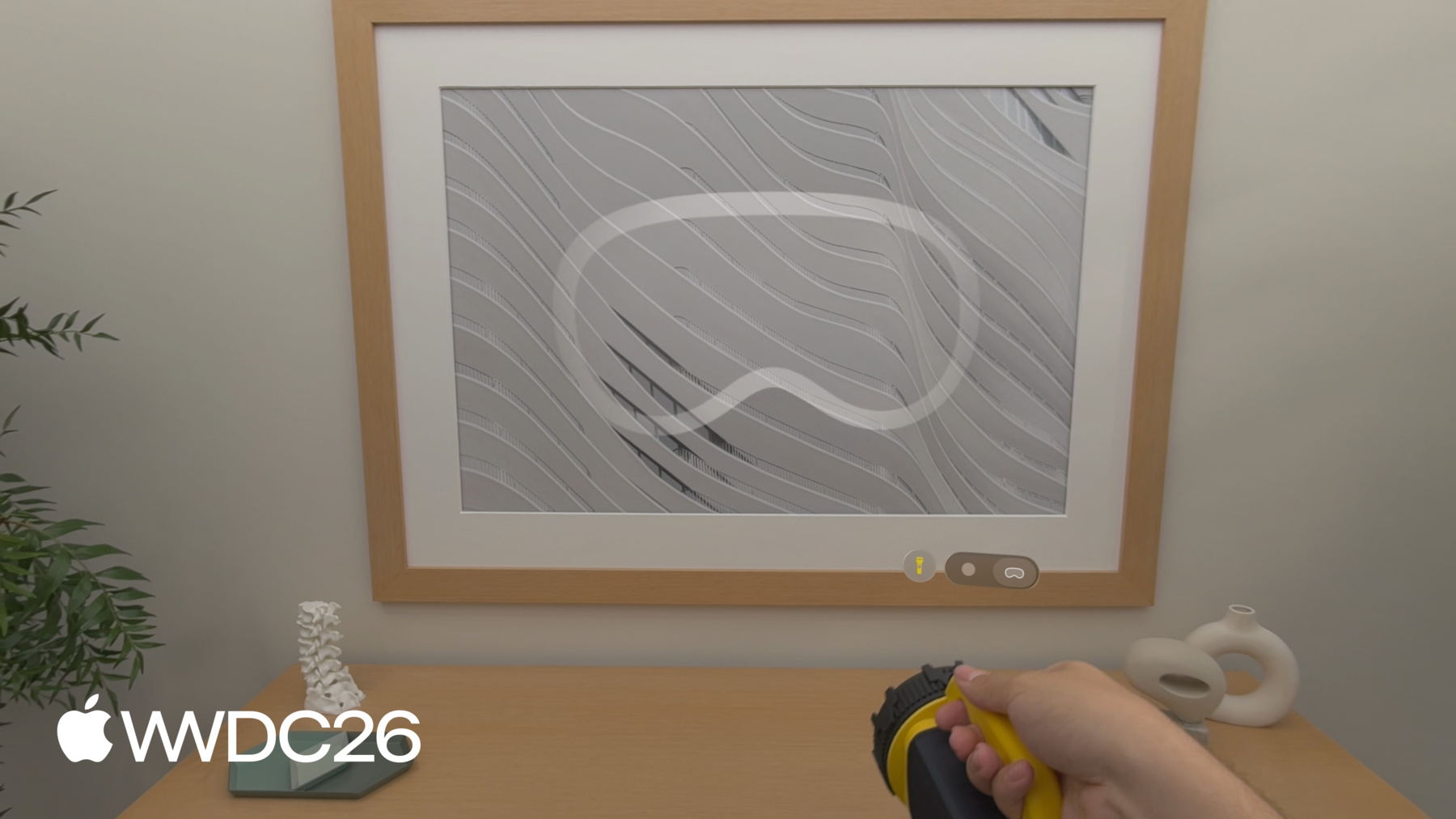
Lastly, we're bringing object tracking to iOS this year. Let's take a look at some of these updates in action using this flashlight. If I have access to a photorealistic 3D model of the flashlight, I can use it as the reference object for object tracking.
Since my app understands the position of the flashlight, I can take advantage of the new Physical Surroundings Light in RealityKit to relight this room in real time. I can also swap the digital pattern being projected onto the surfaces around me. Even though my hand is occluding part of the flashlight, my app is still able to track the position of the object robustly.
Alternatively, I can 3D print a marker like this as the reference object and mount it to the flashlight.
This is an easy way to track any handheld object, even if you're unable to obtain a photorealistic 3D model of the device.
Now, let's discuss the specific updates to show you how to upgrade an existing object tracking experience or start a new one from scratch.
First I'm going to explain how to enable the new high frame rate tracking.
We're adding a new Reference Object Configuration API in ARKit on visionOS. It let's you enable high frame rate tracking for an individual reference object before creating your object tracking session. Once, configured, you can pass this configuration object as an additional parameter when loading the reference object as before. Since this this is not a training setting, it can be applied to any reference object depending on the application's needs. Next let's discuss the new extended training mode we added to Create ML.
When training a reference object in Create ML, you can now choose between the standard and the extended training mode. The new extended training setting increases the accuracy and robustness of tracking, and is recommended to be used in combination with high frame rate tracking. Please note that the extended training takes significantly longer compared to standard mode.
You will find the training mode setting in the Object Tracking template in the Create ML app, right below the viewing angle settings. Everything else stays exactly the same when it comes to training a reference object.
If you prefer to train reference objects through the command line interface, you can configure the training mode there as well. This gives you the flexibility to run the training on a remote machine.
Now we'll review the new benefits of obtaining object poses in metric space.
By default, object anchor transforms are optimized for placing virtual content aligned with the tracked object in the mixed immersion style.
To achieve this, the object poses are slightly altered to match the displayed camera images, impacting the accuracy in absolute world coordinates. This can be a limitation when trying to use object tracking for spatial measuring tasks.
In visionOS 27, we're adding the ARKit Coordinate Space Correction API that let's you obtain the anchor transform with or without these corrections. When querying a tracked object's pose, it provides two options: rendered, returns the pose with display corrections applied to keep virtual content visually aligned with the real-world object, and none, returns the object's pose in metric space, without any corrections. This is useful for measuring the distance between tracked objects or determining where an object sits in physical space as shown in the medical probe demo earlier.
Last but not least, this year we're bringing object tracking to iOS! But first, let's bring back the globe from WWDC24! In iOS 27, we're adding support for reference objects in our ARKit APIs.
Machine learning training is not platform specific. So once trained, all reference objects will be supported in both iOS and visionOS apps.
Here's all it takes to get object tracking running on iOS. You load your reference objects and create a world tracking configuration. These are the same reference object files you use on visionOS.
You assign objects to either detectionObjects for objects that are mostly stationary, or trackingObjects for high frame rate tracking of moving objects. Then you run the session and handle the anchors in your delegate.
When ARKit recognizes an object, didAdd is called and you get an ARObjectAnchor that you can attach content to. While the object gets tracked, didUpdate provides the latest poses, which you can use for your custom app behavior.
And if the object is removed from the scene, didRemove lets you clean up and remove the anchor entity created in didAdd.
Those are all the updates to object tracking in visionOS 27. To learn more about how to develop an app with the object tracking API, you can watch the "Explore object tracking for visionOS" WWDC session or explore documentation. Next, we'll explore how you can turn your object of interest into a spatial accessory.
I'll start by defining a spatial accessory and highlight some of their benefits. Then I'll cover design considerations you should keep in mind when creating your accessory. I'll explain the process to validate your design and prepare it for visionOS. Share some easy plug-and-play accessories and finally show you how to prepare your visionOS app to take advantage of these devices. Now let's get started with the basics.
A spatial accessory is an electronic device which must contain a board with the following components. A constellation of LEDs visible to Apple Vision Pro for tracking. An IMU to capture the orientation and acceleration of the accessory. And a Bluetooth chip to send the signals to Vision Pro. Spatial accessories can also host any variety of inputs including buttons or a touchpad, and outputs like haptics. Any accessory that has these key components is compatible with visionOS.
Let's take a look at spatial accessories in action. By installing the aforementioned components into the flashlight from before, we can make the device itself a spatial accessory. Even when I quickly wave this flashlight, the digital beam of light follows smoothly due to the low latency tracking enabled by the embedded IMU. And using this physical button I added to accessory, I can turn the digital light off and on, making my experience even more interactive. Vision Pro is able to track this spatial accessory, by seeing the LEDs installed inside the flashlight. Now we'll cover some of the benefits spatial accessories offer. These devices can be tracked at high frequency up to the full display rate with low latency and support use-cases that demand fast motion.
Spatial accessories will continue to track robustly, even when temporarily occluded.
You can track the accessory under lower light conditions. Lastly, the physical buttons and haptics allow you to make your experiences even more interactive and immersive.
Before you get started with creating your own accessory, there are important design considerations you should keep in mind. It's important to spread the LEDs around the device in such a way that it creates a distinct and unique pattern when viewed from various angles. Both the LEDs and IMU should be rigidly fixed to the board for accurate tracking.
Last but not least, you should consider the primary way users will interact with your accessory. For example, a handheld accessory should position most of the LEDs in areas where users will not hold the device. You should also consider the size and position of the battery to ensure the accessory is ergonomic.
For larger accessories used out of arms reach, you should consider the number of LEDs, LED size, and distance between them to ensure the accessory can be tracked accurately even when far away.
For more information on specific requirements and reference designs, please check out the "Spatial Accessories" chapter of the "Accessory Design Guidelines" for Apple Devices. Now that you've designed a spatial accessory, let's explore how to validate that it works as expected and prepare it for your visionOS app. The first step is to connect your accessory via Bluetooth to your Vision Pro and validate the signals sent from the device with the ARKit accessory tracking debug view. This tool lets you examine how your Vision Pro sees the accessory and can be found in settings when your device is in developer mode. It helps you with three things: One, verify your LEDs through the headset's IR camera, so you can confirm they're bright, distinct, and properly synchronized. Two, validate your IMU with live metrics on frequency, latency, and per-axis values, in order to check scale, alignment, and motion response. Three, debug timing between your accessory and the headset using the device's IR illuminators as a sync reference.
Next, in order for your visionOS app to track a spatial accessory, you will need to train it with the CreateML bundle.
This workflow uses information about both the physical appearance of the device and the location of the LEDs to create a reference accessory file.
To get started, create a USDZ of your design that contains a photorealistic 3D model of the device annotated with the positions of the IMU and LEDs. Using this annotated USDZ, you can use the command line interface to generate the reference accessory file and add it to your app.
As the manufacturer of the accessory, you bundle this file in your app and declare it as an exported UTType in your Info.plist. This registers your accessory system-wide, so any app on Apple Vision Pro can use it.
If you're a developer using a third-party accessory, you can also bundle the file yourself and declare it as an imported type, so your app works independently.
Before building a spatial accessory from scratch, you can also start testing and develop apps with plug-and-play accessories.
Manufacturers like DFRobot and MIKROE will release off-the-shelf reference hardware and development kits later this year.
These accessories can be immediately used for testing or implemented in your visionOS app. Let's see one of these plug-and-play accessories in action.
As you can see here, I can simply mount a spatial accessory like the seeMote Cap to the flashlight and use the Spatial Accessories API to enable the same digital relighting experience as before.
Now that you have a spatial accessory, let's explore how to connect it to your app. You discover accessories using the new GCSpatialAccessory class. This works with any device that has a referenceaccessory bundle.
When you call Accessory(device), ARKit resolves it automatically. From there, you can run an AccessoryTrackingProvider just like before.
We're also adding a new updateAccessories method to switch between accessories while your session is running to avoiding interruptions to tracking. And with that you can create your own spatial accessory and connect it to your visionOS app. To learn more about how to enable tracking with inputs and haptics in your app, you can watch the "Explore spatial accessory input on visionOS" session.
Let's wrap things up. Today you've seen four different approaches for tracking an object in your app. Let's review some considerations you should keep in mind when selecting which approach to use.
Object tracking excels in scenarios where accurate and precise tracking is required, such as measurement applications.
In case you do not have access to a photorealistic 3D model, you can train your referenceObject on a marker you mount on the object of interest.
Spatial accessories offer even higher refresh rates and lower latency, which is optimal for experiences that demand fast moving objects.
If you want to create an even more interactive and immersive experience with physical objects, you can design your own accessory with custom buttons and haptics.
The possibilities enabled by these new object tracking capabilities are endless. We're excited to see the transformational experiences for work and play you can create. Have a fantastic WWDC26!
-
-
3:50 - Enable high frame rate tracking
// Enable high frame rate tracking // Create reference object configuration var configuration = ReferenceObject.Configuration() configuration.highFrameRateTrackingEnabled = true // Load the reference object with ARKit API let refObjURL = Bundle.main.url(forResource: "flashlight", withExtension: ".referenceobject") let refObject = try? await ReferenceObject(from: refObjURL!, configuration: configuration) -
4:50 - Extended training mode via command-line
// Extended training mode on Mac using command-line interface % xrun createml objecttracker --source flashlight.usdz --output flashlight.referenceobject --training-mode extended --all-angles -
5:25 - Object pose coordinate spaces
// Different object pose spaces // Obtain anchor transform with display corrections let renderingPose = myObjectAnchor.coordinateSpace(correction: .rendered) // Obtain anchor transform in metric space let metricPose = myObjectAnchor.coordinateSpace(correction: .none) -
6:22 - Implement object tracking in iOS
// Implement object tracking in iOS import ARKit import RealityKit class ObjectTrackingARSessionDelegate: NSObject, ARSessionDelegate { let arView = ARView(frame: .zero) var entities: [UUID: AnchorEntity] = [:] func start() throws { let stationaryObject = try ARReferenceObject(archiveURL: Bundle.main.url(forResource: "stationary", withExtension: "referenceobject")!) let movingObject = try ARReferenceObject(archiveURL: Bundle.main.url(forResource: "moving", withExtension: "referenceobject")!) let configuration = ARWorldTrackingConfiguration() configuration.detectionObjects = [stationaryObject] // Low frame rate configuration.trackingObjects = [movingObject] // High frame rate arView.session.delegate = self arView.session.run(configuration) } func session(_ session: ARSession, didAdd anchors: [ARAnchor]) { for case let anchor as ARObjectAnchor in anchors { let entity = AnchorEntity(anchor: anchor) entities[anchor.identifier] = entity arView.scene.addAnchor(entity) } } func session(_ session: ARSession, didUpdate anchors: [ARAnchor]) { for case let anchor as ARObjectAnchor in anchors { entities[anchor.identifier]?.isEnabled = anchor.isTracked } } func session(_ session: ARSession, didRemove anchors: [ARAnchor]) { for case let anchor as ARObjectAnchor in anchors { if let entity = entities.removeValue(forKey: anchor.identifier) { arView.scene.removeAnchor(entity) } } } } -
12:26 - Discover and connect a spatial accessory
import ARKit
import GameController

// Generic accessory discovery

if let device = GCSpatialAccessory.spatialAccessories.first {

        // Resolves the .referenceaccessory bundle automatically

        let accessory = try await Accessory(device: device)
        let provider = AccessoryTrackingProvider(accessories: [accessory])
        try await arkitSession.run([provider])
}

// Update tracked accessories without restarting the session

try await provider.updateAccessories([newAccessory])
-
-
- 0:00 - Introduction
Overview of the new visionOS object tracking enhancements, including high-frame-rate tracking of handheld objects and the expansion of spatial accessories to third-party developers.
- 2:20 - Object tracking
A recap of the object tracking API introduced in visionOS 2.0 and what's new in visionOS 27: tracking objects in motion, training extended models in Create ML, metric-space poses, and iOS support.
- 7:20 - Spatial accessories
Introduction to spatial accessories — electronic devices with an LED constellation, IMU, and Bluetooth that Vision Pro tracks in real time. Covers the first generation of accessories and the expansion to custom third-party hardware in visionOS 27.
- 7:47 - Creating a spatial accessory
Design considerations, hardware requirements, and the validation workflow for building your own spatial accessory, including how to use the debug tool in Simulator and generate a reference accessory bundle.
- 11:48 - Plug-and-play accessories
Off-the-shelf reference hardware from manufacturers like DFRobot and MikroE that can be used immediately for testing or integrated into your visionOS app without custom hardware development.
- 12:22 - Implementing in your app
How to discover and connect a spatial accessory using the GCSpatialAccessory class and AccessoryTrackingProvider APIs, including how to hot-swap accessories without interrupting your ARKit session.
- 13:03 - Next steps
Key takeaways on choosing the right tracking approach, and links to related sessions including Explore object tracking for visionOS and Explore spatial accessory input on visionOS.